The style of handwriting currently taught in New Zealand is specified in Teaching Handwriting, a Ministry of Education publication, which was originally developed in response to teachers’ requests for guidance on the style of handwriting that should be taught in primary school. Teachers and schools usually create their own resources for handwriting instruction based on the style advocated in this document. It was first released in 1985 and its latest iteration was released in 2025. Teaching Handwriting outlines a progressive handwriting education system that advances from this simplified print script to semi-joined cursive writing.
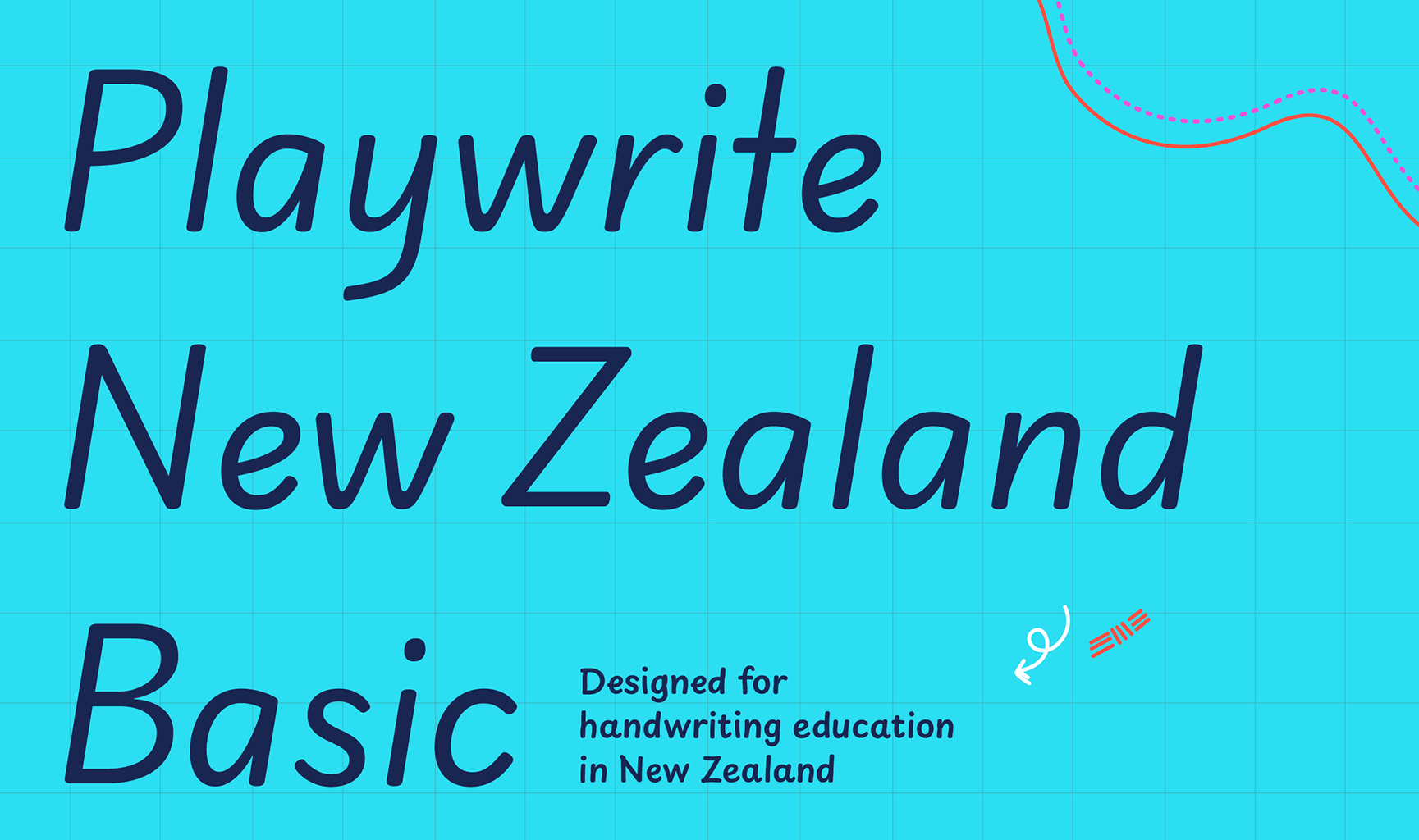
Playwrite New Zealand Basic was created in 2025 upon requirements and specifications from the Ministry of Education of New Zealand. It is a variable font with a weight range from Thin (100) to Regular (400), and supports over 150 Latin-based languages. It has a single-weight sibling with Guides, Playwrite NZ Basic Guides, designed to harmonize seamlessly with this main font while providing a visual aid for primary school children. The alphabet for later education stages is called Playwrite NZ.
To contribute, see github.com/TypeTogether/Playwrite.
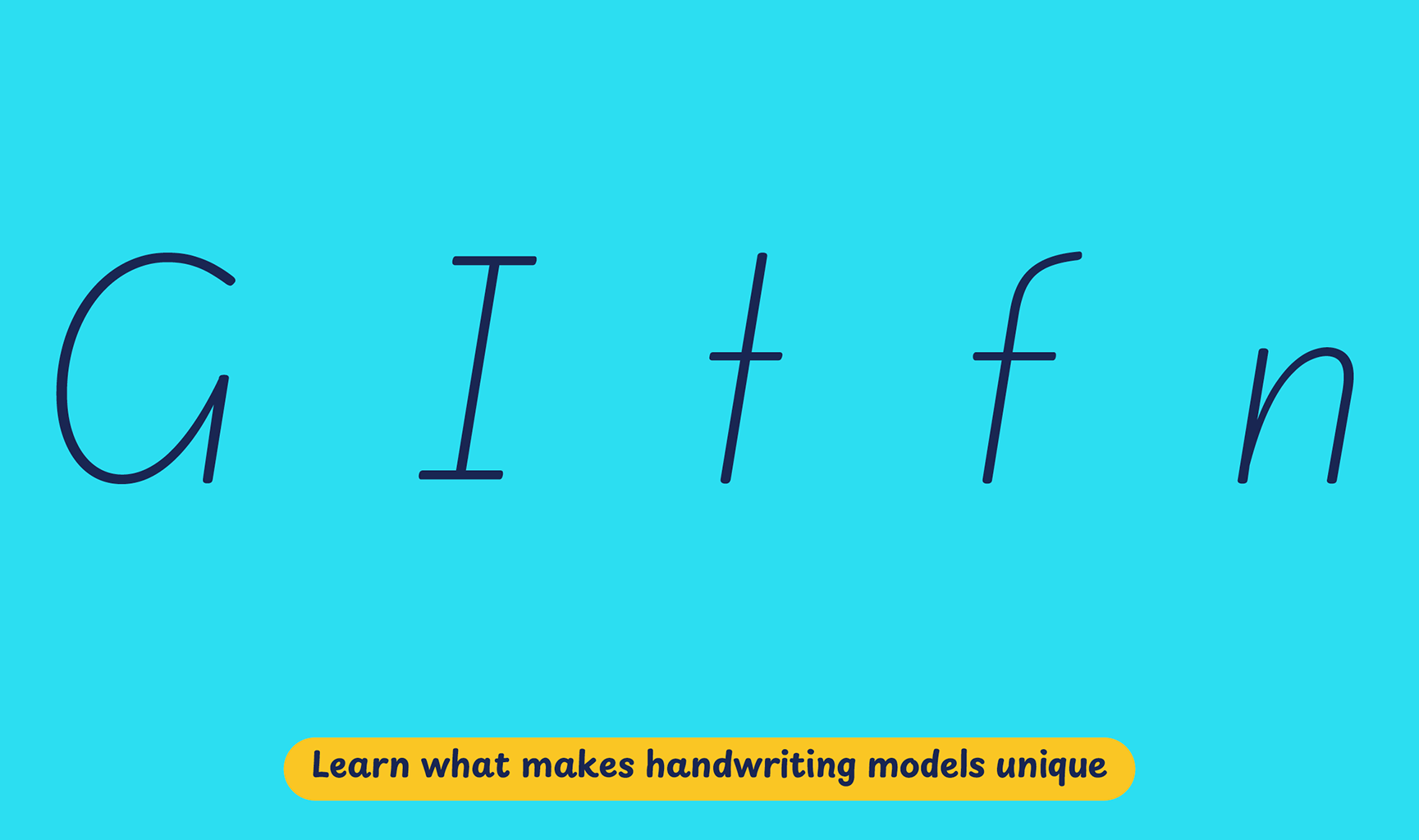
This simplified print style is moderately slanted, featuring unadorned uppercase letters and unjoined lowercases. Notable are the open 'G' without a crossbar, a serifed 'I', and a 'Y' with a slanted stem. The lowercase letters are simple, exhibiting a very fast and angular construction typical of modern cursive styles based on italic forms. The letter 'f' does not have a descender, ’t’ does not have an exit stroke, and finials on ascending and descending strokes are open and casual, enhancing the dynamic and streamlined appearance of the script.
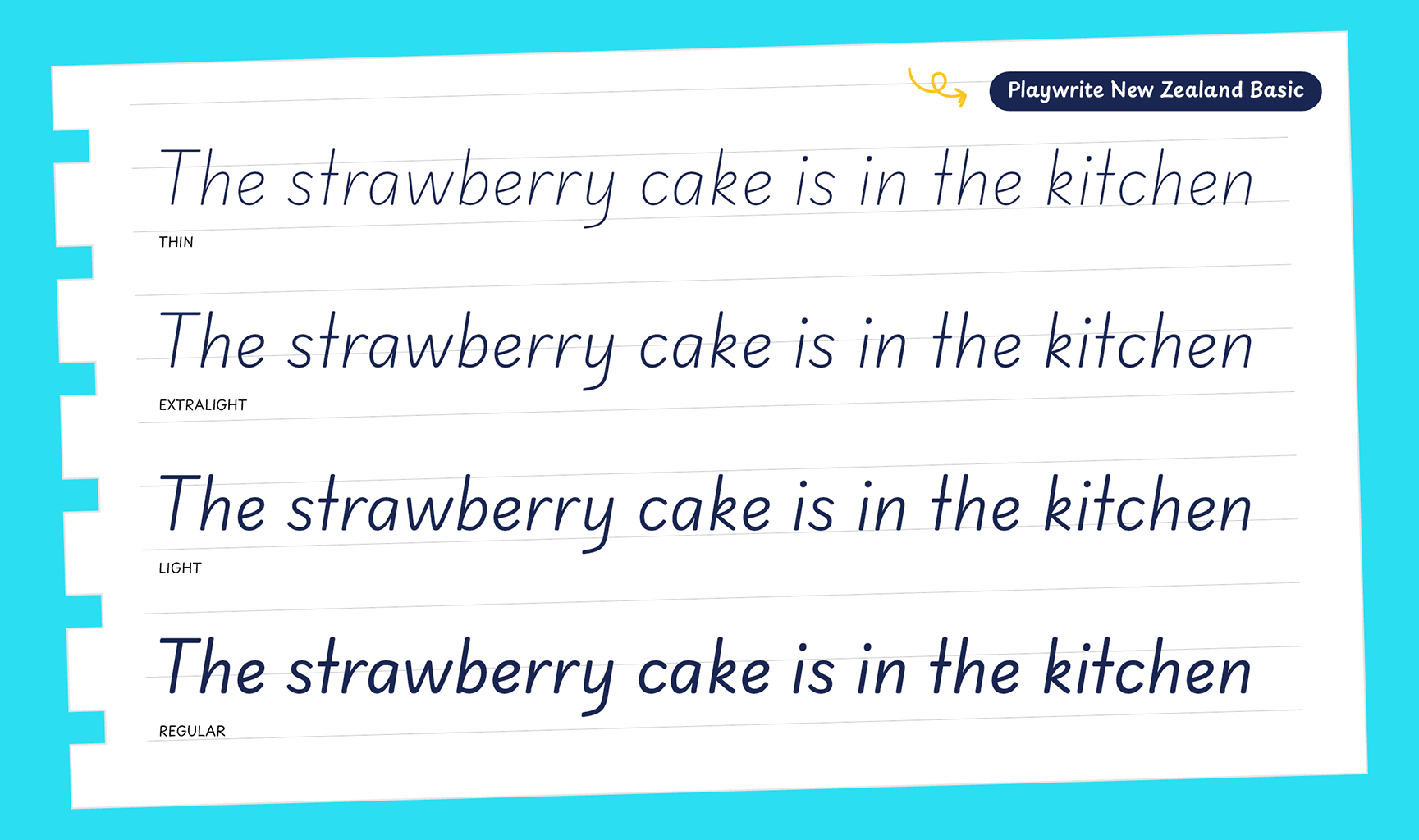
Playwrite New Zealand Basic appears in font menus with a two-letter country code ‘NZ’, Playwrite NZ Basic, and features four styles: Thin, ExtraLight, Light and Regular.
The download .zip file includes the variable font and standard static ttf fonts for each style.
The Playwrite school fonts are based on the findings of Primarium, a groundbreaking educational effort that documents the history and current practice of handwriting models taught to primary school students worldwide. This typographic engine serves teachers, educators, and parents by generating localized libre fonts. These Playwrite fonts are complemented by Playpen Sans, an informal and fun typeface designed for annotations, instructions, and student notes – that also includes emojis.
For more information about the Primarium project, visit primarium.info and to learn more about handwriting education in New-Zealand, see primarium.info/countries/new-zealand.
Windows: Download the font file to your computer. Navigate to where you saved the font file and double-click it to open. Click the "Install" button at the top of the font preview window. The font is now installed and ready to be used across your apps.
macOS: After downloading the font file to your Mac, right-click it in Finder and select "Open With" > "Font Book". Then, click "Install Font" in the font preview window that pops up. The font is now installed and ready to be used across your apps.
The Playwrite font family uses complex OpenType features to generate connected writing. Some common applications require these features to be manually activated.
Note: This font family doesn't include Bold or Italic styles, so please avoid applying them in text editors. If you use the common 'B' and 'I' buttons, you will automatically generate low-quality styles.
Google Docs and Slides: From the font selector drop-down, go to "More Fonts" and search for the desired font name, in this case, "Playwrite NZ Basic", and click OK. If some text is already selected, the font choice will apply.
Microsoft Word: Go to Format in the Menu bar, select Font, and then the Advanced tab. Activate "Contextual Alternates" and "Kerning for fonts below" to apply these settings to all text sizes.
LibreOffice: In macOS, to select the different styles, go to Format in the Menu bar, select Character, and use the Typeface menu.
Adobe InDesign: Open the Paragraph Panel and select Adobe "World-Ready Paragraph Composer" from the contextual menu.
Adobe Illustrator: Navigate to Preferences > Type, check the "Show Indic Options" box, and close preferences. Then open the Paragraph Panel and select "Middle Eastern Composer" from the contextual menu.
Adobe Photoshop: Access the Paragraph Panel, then choose "World-Ready Layout" from the contextual menu.
The above instructions are also available in PDF format here.